- Stream (Classic)
- YouTube
- File Viewer
- Embed
- Hero - This blog
- Highlighted Content
If you want to check any previous options, you can click on that option in the above list and read more about that option.
If you want to add a video to your current site or any external site, then you can use this option. For this blog, we will use video from the SharePoint site.
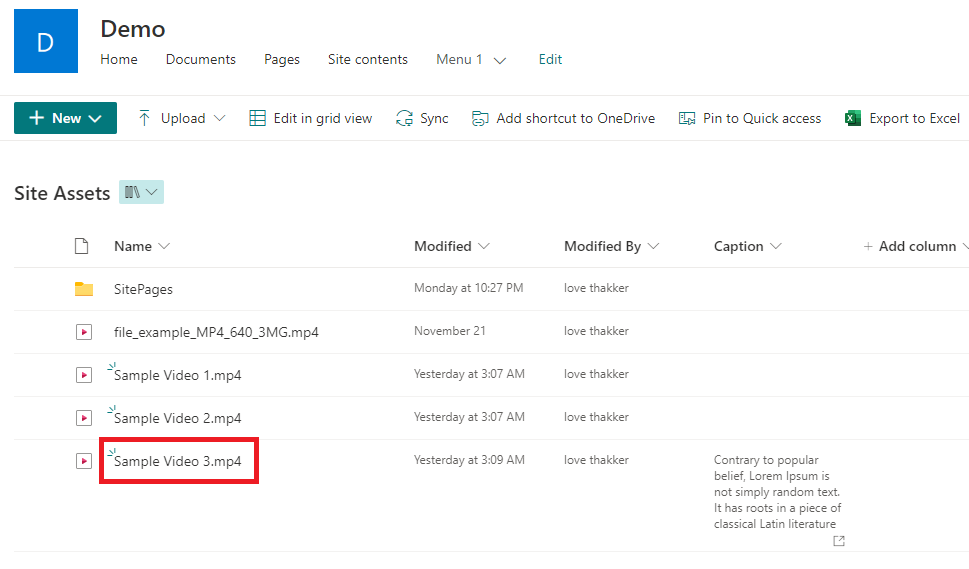
- Upload video to SharePoint Library.

- Now add Hero webpart to your page.
Note – make sure you add a hero webpart in a single or 2 third section.


- Select webpart and click on edit in the top left section.

- In the layout option select “one tile”. It will update the webpart to a single-tile layout.

- Now click on the select link button.

- Select “site” in the left section. Select the library.

- Select the video you want to display. Then click select at the bottom of the panel.

- It will load the video on the page. Click edit on the bottom right part of the tile to edit the details.

- Provide video title. It will display on video as you type.

- If you want to navigate the user to any other link, open the options section.
- In that, you can change the link text from “learn more” to anything you want. Also, you can provide a link where you want to redirect users. You can turn off the setting if you don’t want to display the additional link.

- Save the page.

- The video will render as below.

Advantage:
- The select option can pick videos from classic libraries, like site assets.
- The webpart provides basic features of a thumbnail, and play button, and starts the video on play click.
- We have the ability to provide an additional link to redirect users to another link.
- With Stream (On SharePoint) coming, Microsoft is suggesting this webpart for setting up a video gallery kind of functionality.
Reference - https://learn.microsoft.com/en-us/stream/streamnew/portals-guide-intranet-home#videos-as-curated-hero-elements
Limitations:
- The webpart has a fixed height. That might cut the thumbnail. Also, the video is not occupying the full width of the webpart.
- We need to provide the title manually.
- If the source is external like a YouTube link, it will showcase a thumbnail without a play button. On click, it will open in a new tab.
- If you want to embed a single video, you need to add the webpart in a single column or 2 third sections first and need to reset webpart to a single layout.






%201.png)
%202.png)

%203.png)
%204.png)
%205.png)
%206.png)
%207.png)
%208.png)
%209.png)
